

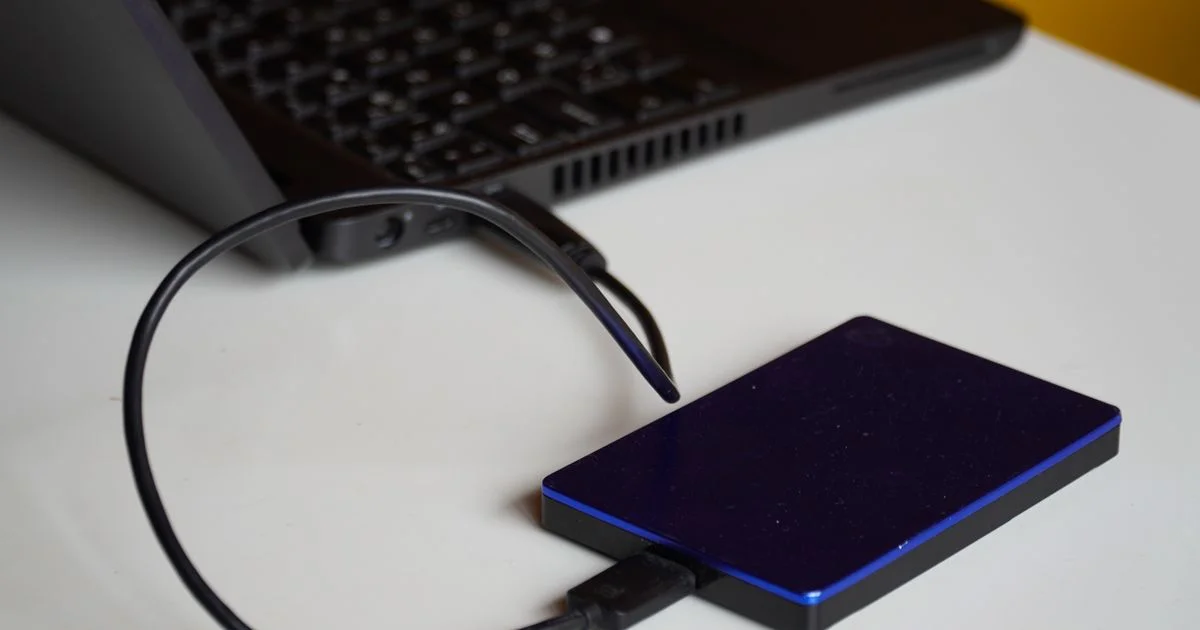
Backups are boring right up until the moment they are the only thing standing between you and losing every photo you have ever taken. The best external hard drive for backup 2026 shoppers can buy is not the biggest or the fastest one on the shelf. It is the one you will actually plug in, week after week, without thinking about it.
Key Takeaways
- Capacity should be roughly two to three times the data you are protecting, so the drive has room to keep older versions of your files.
- Spinning hard drives still win on cost per terabyte. Solid state drives win on speed and survivability.
- A backup that lives on your desk is not a real backup. Keep one copy offsite or in the cloud.
- Look for a drive with hardware encryption or use your operating system’s built-in encryption before the first backup runs.
- The most common failure is not a dead drive. It is a backup that quietly stopped running months ago.
How to Pick the Best External Hard Drive for Backup 2026
The short answer: buy a portable drive with two to three times your current data, pick solid state if you will carry it around and a spinning drive if it lives on a desk, and turn on automatic backups the same day it arrives.
That is genuinely the whole decision for most people. Choosing the best external hard drive for backup 2026 gets complicated only when you start comparing spec sheets that describe things backups never stress. Sequential read speeds, cache sizes, and benchmark numbers matter to video editors working off the drive. They matter very little to someone copying a photo library once a week.
What actually matters is boring: enough space, a connection your computer has, and a habit you can keep.
Start With How Much Data You Have
Open your file manager and check how much space your internal drive is using. Not its total size — the space actually used. That number is your floor. Multiply it by two or three, and you have your target capacity.
The extra room is not waste. Backup software keeps older versions of changed files, which is what lets you recover the document you accidentally overwrote on Tuesday. Fill a drive to the brim and that version history is the first thing the software deletes.
External SSD vs HDD Comparison
This is the one real fork in the road. An external SSD vs HDD comparison comes down to a straight trade between cost and durability, and the right answer depends almost entirely on whether the drive stays still or moves around.

A hard disk drive stores data on spinning metal platters read by a head that hovers above them. Drop it while it is running and that head can touch the platter. A solid state drive has no moving parts at all — data sits in flash memory chips. That single difference explains almost every other difference between them.
When a Spinning Drive Is the Better Buy
Hard drives cost meaningfully less per terabyte, and that gap widens as capacity grows. If the drive is going to sit beside your monitor and run a scheduled backup every night, its mechanical fragility never gets tested. You are paying less for storage that does the same job.
When to Pay More for Solid State
If the drive goes in a bag, gets handed to a family member, or lives in a car, the durability is worth the premium. Solid state drives are also dramatically faster, which changes backups from something you start and walk away from into something that finishes while you make coffee.
Portable Hard Drive 2TB Review: Is That the Sweet Spot?
Two terabytes has become the default recommendation, and a portable hard drive 2TB review will usually tell you the same thing: it is the capacity where price per terabyte stops improving quickly and the drive is still small enough to be genuinely portable.
For most people, 2TB comfortably covers a laptop’s internal drive plus years of version history. It stops being enough in a few specific cases:
- You shoot video, in which case capacity needs grow far faster than you expect
- You are backing up more than one computer to the same drive
- You keep a large local music or game library that you do not want to redownload
- You want the drive to hold an archive as well as a backup, which are different jobs
Backup Drive Ranked 2026: What Separates Good From Cheap
Any backup drive ranked 2026 list will feature drives that look nearly identical from the outside. The differences that matter are not on the front of the box.
| Drive type | Best for | Main trade-off |
|---|---|---|
| Portable HDD | Maximum capacity for the money, desk-based backups | Slow, and vulnerable to knocks while running |
| Portable SSD | Travel, daily carry, fast full-system backups | Costs considerably more per terabyte |
| Desktop HDD | Large archives and multi-computer backups | Needs its own power outlet; not portable |
| Rugged SSD | Fieldwork, job sites, anything that gets dropped | Bulkier, and you pay for the armor |
| Network drive | Households backing up several devices at once | More setup, and a real cost step up |
Two details are worth checking before you buy. First, the connector and cable: a drive with a USB-C port is useless on the day you only have a USB-A cable, so check what ships in the box. Second, the warranty length, which is the closest thing to a manufacturer stating how long they expect the drive to survive.
Ignore the Speed Numbers on the Box
Advertised transfer speeds are measured under ideal conditions with large files. Real backups are mostly thousands of small files, where drives perform nothing like their headline figure. A faster rating rarely translates into a proportionally faster backup.
Setting Up a Backup That Actually Runs
The drive is the easy part. Here is the sequence that turns it into a backup you can rely on:
- Format the drive for your operating system before you copy anything to it. Drives usually ship formatted for Windows; Mac users should reformat.
- Turn on encryption. Windows and macOS both include it free. A stolen unencrypted backup drive is a copy of your entire life handed to someone else.
- Use built-in backup software — File History on Windows, Time Machine on macOS — rather than dragging folders by hand. Manual copying is the habit that always breaks first.
- Set a schedule and let it run automatically. Weekly is a reasonable minimum; daily is better.
- Test a restore about a month in. Pick one file, delete it, and recover it from the backup. An untested backup is a guess.
- Add a second copy offsite, whether that is cloud storage or a drive kept at a relative’s house. Fire and theft take the computer and the backup sitting next to it together.
Frequently Asked Questions
A few questions come up constantly when people set up their first proper backup, and the answers are more reassuring than most product pages suggest.
How long will an external hard drive last?
Manufacturers generally rate consumer drives for several years of normal use, and warranty length is a rough proxy for their own expectations. In practice, drives fail unpredictably — some last a decade, some fail in the first year. This is exactly why the advice is always to keep two copies rather than to hunt for one perfect drive.
Do I still need a physical drive if I use cloud backup?
They solve different problems. Cloud storage protects you from fire, flood, and theft. A local drive gives you a fast restore that does not depend on your internet connection, which matters when you are recovering an entire system. Most people are best served by having both.
Can I leave the drive plugged in all the time?
You can, and for a desk-based backup it is the practical choice, since a drive you unplug is a drive you forget to plug back in. The one real risk is ransomware, which can encrypt any drive it can reach. If that concerns you, keep a second drive that stays disconnected between backups.
Is a used or refurbished drive a reasonable way to save money?
For a backup drive specifically, it is a poor trade. You have no visibility into how many hours the drive has already run or how it was handled, and the entire point of the purchase is reliability. The savings are small relative to what the drive is protecting.
The Bottom Line
Buying storage is the simplest part of protecting your files — capacity, connection, and whether it moves around cover nearly the whole decision. What separates people who recover their data from people who lose it is not the drive on the desk, it is whether the backup ran last week and whether anyone ever tested a restore.


4 Comments
Comments are closed.