Finding an AI image generator for realistic photos is harder than it sounds. Plenty of tools make pretty pictures. Far fewer make images that pass for real photography. This guide covers which tools get closest, how to prompt them, and the small details that give AI away.
Key Takeaways
- Realism comes from consistent light and imperfect surfaces, not from higher resolution.
- No single tool wins. Midjourney leans cinematic, FLUX leans literal, Adobe Firefly leans commercial-safe.
- Prompt like a photographer: name the lens, the light source, and the aperture.
- Check hands, text, jewelry, and reflections before publishing. Those four catch most errors.
- Free tiers often restrict commercial use, so read the terms for your specific plan.
What an AI Image Generator for Realistic Photos Has to Get Right
The short answer: a good AI image generator for realistic photos has to obey the physics of light. Realism is not about resolution. A blurry phone snapshot still looks real. A razor-sharp AI render often does not.
A real camera captures light bouncing off real surfaces. Every shadow, reflection, and soft edge follows rules. When a model breaks one of those rules, your brain notices before you can explain why. That gap is what separates a usable image from one you have to throw away.
Light and Shadow Have to Agree
This is the biggest tell. If sunlight comes from the left, every shadow in the frame must fall to the right. Weaker models place shadows independently. You end up with a face lit from one side and a jacket lit from the other.
Check reflections too. A shop window, a pair of sunglasses, or a puddle should reflect what is actually in the scene. When it reflects something else entirely, the illusion breaks.
Real Surfaces Are Never Perfect
Skin has pores. Fabric has loose threads. Metal picks up fingerprints and fine scratches. Older models smoothed all of it into plastic. Newer ones keep the mess, and that texture is what sells the image.
If your output looks like a magazine cover that has been retouched too far, that is usually the problem. Ask for texture directly.
AI Art Generator Comparison: How the Main Tools Differ
There is no single winner in any honest AI art generator comparison. Each tool has a personality, and the right pick depends on what you are trying to shoot.
| Tool | Best for | Look it leans toward | Worth knowing |
|---|---|---|---|
| Midjourney | Portraits and moody scenes | Cinematic, stylized by default | Beautiful output, but you often have to talk it out of looking like a movie still |
| FLUX | Photoreal detail and text inside images | Neutral and literal | Follows prompts closely, which suits people who do not want a house style |
| DALL·E in ChatGPT | Fast ideas and edits by conversation | Clean and illustrative | Easiest to steer in plain English, less specialized for photorealism |
| Adobe Firefly | Commercial and client work | Safe, catalog-ready | Built with licensing in mind and wired into Adobe apps |
| Stable Diffusion | Full control and local runs | Whatever you train it toward | Free to self-host, but the steepest learning curve here |
| Google Imagen | Everyday, understated realism | Natural and restrained | Reachable through Google’s own AI apps |
One caveat on that table. These tools update constantly, and rankings shift within months. Treat it as a starting point. Run the same test prompt through two or three of them before you commit to a paid plan.
Prompts That Produce Photographs, Not Illustrations
Most people write prompts like a wish list. Photographers write them like a shot description. The second approach works far better.
- Name a camera and lens. “Shot on a 50mm lens” pushes the model toward natural perspective. Wide lenses stretch faces.
- Describe the light source. “Overcast afternoon light through a window” beats “good lighting” every time.
- Set the aperture. “f/1.8, shallow depth of field” gives you the soft background falloff real portraits have.
- Add a flaw on purpose. “Slight grain, minor lens flare” sounds wrong but reads as authentic.
- Skip the hype words. “Beautiful,” “perfect,” and “masterpiece” drag models toward glossy digital art.
- Say what you do not want. Many tools accept negative prompts. “No text, no watermark, no extra fingers” saves rework.
Change one thing at a time. If you rewrite the whole prompt after a bad result, you learn nothing about what actually helped.
AI Product Image Tools for Small Shops
This is where the technology pays for itself fastest. A studio shoot costs real money. AI product image tools let a small seller build a full catalog from a few phone photos.
What They Handle Well
Background replacement is the everyday win. You shoot a mug on your kitchen table, then drop it onto clean white for a marketplace listing, or onto a linen surface for a lifestyle shot.
Scene building is the bigger one. The same mug can sit on a cafe counter, a desk, or a windowsill in morning light, without you leaving the house. Shadow generation matters here, since a product floating without a shadow looks fake instantly.
Where to Be Careful
Never let AI invent details of a real product. If it smooths a logo, changes a color, or adds a feature your item does not have, that is a misleading listing. Customers notice, and so do marketplaces.
The safe rule: use AI for the background and the lighting, keep the product itself photographed and untouched.
Choosing the Best AI Image Editing App
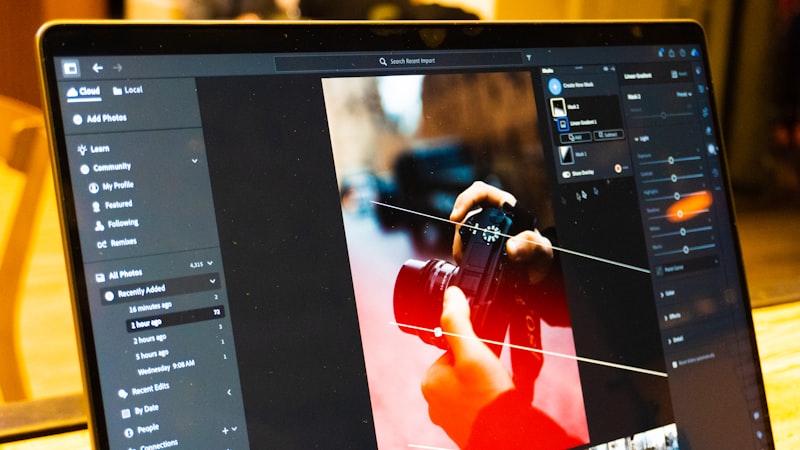
Generating and editing are different jobs. The best AI image editing app for you depends on which one you do more often.
If you mostly fix existing photos, look for these features:
- Inpainting to remove or replace part of an image while leaving the rest alone
- Outpainting to extend a frame when your crop is too tight
- Generative fill for erasing a stranger, a power line, or a trash can
- Upscaling that adds real detail rather than just enlarging pixels
- Layer or history support so you can undo one step without starting over
Mobile apps are convenient and good enough for social posts. Desktop tools give you finer masking control, which matters once you are editing for print or for a paying client.
Six Details That Give AI Away
- Hands. Still the classic. Count the fingers, and check that knuckles bend the right direction.
- Text. Signs, labels, and book spines often come out as near-letters. Zoom in before you publish.
- Jewelry and eyeglasses. Chains break mid-link and frames fail to connect behind the ears.
- Repeating patterns. Brick walls, tiles, and plaid shirts tend to drift or warp across the frame.
- Backgrounds. Faces in a crowd melt. Distant buildings grow doors that lead nowhere.
- Teeth and eyes. Too many teeth, or two eyes that catch light from different angles.
Fixing these is usually faster than regenerating. Mask the bad area and inpaint just that patch.
Rights and Safe Use in the United States
Commercial rights vary by tool and by plan, so read the terms for the specific tier you pay for. Free tiers often restrict commercial use even when paid tiers allow it.
Two more things worth knowing. The US Copyright Office has taken the position that purely AI-generated material is not protected by copyright without meaningful human authorship, which affects whether you can defend an image as your own. And if you use AI imagery in advertising, standard truth-in-advertising rules still apply, so the picture cannot promise something the product does not deliver.
Avoid generating recognizable people or trademarked logos for commercial use. That is a separate legal problem from copyright, and it does not go away because a machine drew it.
Frequently Asked Questions
These are the questions readers ask most often when picking their first tool. If you are still weighing platforms, the short answers below cover the practical differences that matter before you spend anything on a subscription.
Can AI images really pass as real photos?
Often, yes, for landscapes, objects, and product scenes. Close-up portraits are still the hardest, mostly because people are very good at reading faces and hands.
Do I need a paid plan for realistic results?
Free tiers are fine for testing and learning. Paid plans generally give you faster generations, higher resolution, and clearer commercial rights, which is the part that matters most for business use.
Which tool should a total beginner start with?
Start with whichever one you can reach inside a tool you already use. Learning to write good prompts transfers between platforms, so the first choice is not permanent.
Should I tell people an image is AI-generated?
For editorial, journalism, and anything involving real people, yes. Many platforms also apply their own AI labels automatically. Disclosing early costs you nothing and protects your credibility.
The Bottom Line
The gap between AI output and real photography has narrowed to a handful of details: light that agrees with itself, surfaces that are not too clean, and hands that hold together. Pick a tool that matches your subject, prompt it like a photographer rather than a client, and check the small stuff before you publish. That last step is what separates work that looks real from work that just looks expensive.