

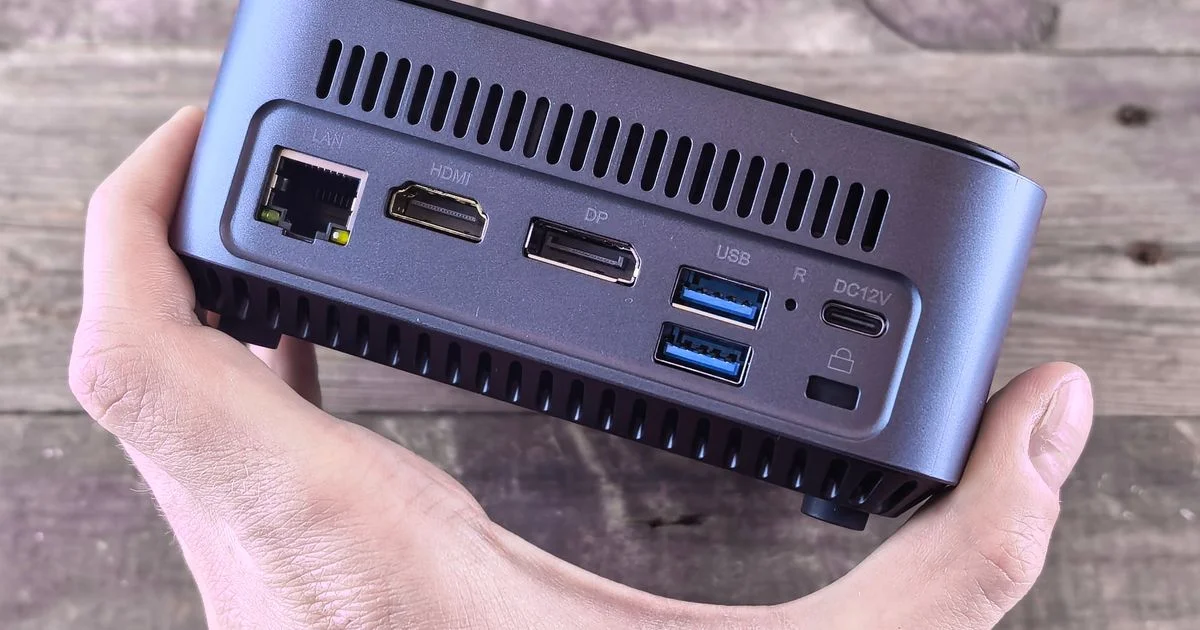
Streaming boxes are cheap, small and mostly fine, right up to the point where you own a file they refuse to play. That is where a home theatre PC earns its place: it plays what you give it, in the format you give it, and hands the decoding decisions back to you. The catch is that three or four specs decide whether a given box can do that, and none of them are the ones printed largest on the listing.
Key Takeaways
- Hardware decode support, not raw CPU speed, decides whether a box plays modern files smoothly.
- HDMI 2.0 tops out at 4K60 and 18 Gbps; HDMI 2.1 carries 48 Gbps and is what 4K120 and full-color output need.
- Lossless and object-based audio must be bitstreamed, not decoded on the PC — and Windows settings break this more often than hardware does.
- Dolby Vision is effectively unavailable on a Windows HTPC outside one Microsoft app, because of licensing rather than performance.
- A 6-watt mini PC is enough for playback; you only need more when something is transcoding.
What a home theatre PC actually has to get right
The short answer: play the file without touching it, and pass the audio through untouched too. Everything a home theatre PC does well comes from that one idea. When the box decodes video in hardware and hands the audio track straight to your receiver, the CPU sits nearly idle, the fan stays off and the picture is exactly what was encoded. When any part of that chain is missing, software steps in, the processor works hard, and quality drops somewhere you did not choose.
So the spec sheet questions are narrow: can this chip decode the codecs my files use, can this port carry the signal my display wants, and can this software hand the audio over intact?
Hardware decode is the spec that rules a box in or out
Every modern video file is compressed with a codec — HEVC and AV1 are the two that matter now, with VP9 still common on the web. If the integrated graphics can decode that codec in silicon, playback costs almost nothing. If it cannot, the CPU decodes it in software, which on a small low-power chip means dropped frames and a fan you can hear from the sofa.
This is why processor benchmark scores are a poor guide here. Intel’s N100, a chip rated at a 6-watt TDP with four cores and 24 graphics execution units, is a perfectly good media playback processor — not because it is fast, but because the graphics block handles the decoding. A far more powerful CPU without the right decode support would be worse at the job and much louder doing it.
Check the codec list on the graphics silicon, not the CPU benchmark. That is the single most useful thing you can do before buying.
HDMI 2.0 vs 2.1: what 48 Gbps actually buys you
HDMI version numbers get treated as a bigger-is-better ladder. The real difference is bandwidth, and bandwidth is what forces compromises when it runs short.
- HDMI 2.0 carries up to 18 Gbps total, roughly 14.4 Gbps of usable data, and maxes out at 4K60.
- HDMI 2.1 carries up to 48 Gbps, roughly 42.6 Gbps usable — about 2.7 times more — and reaches 4K120 and 8K60.
- When bandwidth runs out, HDMI 2.0 drops to 4:2:0 chroma subsampling to fit the signal. HDMI 2.1 has room for 4K120 at 4:4:4 and 10-bit color.
- eARC, which arrives with 2.1, carries up to 37 Mbps — enough for lossless audio. Plain ARC on 2.0 only carries compressed formats.
For movie playback at 24 or 60 frames per second, HDMI 2.0 is genuinely sufficient. It becomes a real limit if you also want to game on the box, or if your audio has to travel back from the TV to a receiver. Note that many low-power mini PCs cap their video output at 4096 x 2160 at 60 Hz regardless of what the port is labeled — the N100’s published maximum is exactly that on both HDMI and DisplayPort.

Audio passthrough is where most builds fall down
There are two ways a PC can send audio: decode it into PCM itself, or bitstream it — pass the encoded track through untouched and let the receiver decode. For Dolby TrueHD, Dolby Atmos, DTS-HD Master Audio and DTS:X, bitstreaming is the only option that preserves what you paid for. Object-based metadata in Atmos and DTS:X cannot be meaningfully converted to channels by a PC at all.
Hardware is rarely the problem. Settings are. The usual culprits, in the order they trip people up:
- The player is using the wrong audio renderer. Bitstreaming needs WASAPI in exclusive mode.
- “Allow applications to take exclusive control of this device” is switched off in Windows sound settings.
- Passthrough is not enabled per codec inside the player — Kodi, VLC, MPC-HC and PotPlayer all require this explicitly.
- An equalizer, spatial audio option or APO effect is sitting in the chain and decoding the stream before it can leave.
- GPU audio drivers are missing or stale, so the HDMI audio device never exposes the formats.
One more routing detail: full HDMI supports the lossless codecs, and eARC does too, but ordinary ARC is limited to compressed Dolby Digital Plus. If your audio path goes PC to TV to soundbar over plain ARC, you lose the lossless track no matter what the PC sends.
Dolby Vision: the gap nobody mentions
This is the honest limitation of the whole category. Dolby Vision uses dynamic per-frame metadata and 12-bit color, against HDR10’s fixed metadata and 10 bits — and on Windows, almost nothing can play it. Every link in the chain has to be licensed by Dolby, which is incompatible with how open-source players are built, so Kodi, VLC and Plex cannot support it. On a Windows box the only default app that plays Dolby Vision is Microsoft’s own Films and TV.
HDR10 works fine. If your library leans heavily on Dolby Vision, a licensed streaming box will do that specific job better than any PC, and that is worth knowing before you build.
Direct play, transcoding, and what the CPU is really for
If your HTPC also runs a media server, the vocabulary matters, because it determines how much processor you need.
| Mode | What happens | What triggers it | CPU cost |
|---|---|---|---|
| Direct play | The file is sent as-is | Nothing — the client already supports it | Almost none |
| Direct stream | Streams are copied into a different container | Container mismatch only, codecs still fine | Very little |
| Transcoding | Video or audio is re-encoded | Codec mismatch, or a client bitrate limit | High for video, moderate for audio |
The design goal is to never transcode. Match your library’s codecs to what your display and player support, and a 6-watt chip is plenty. Build a library that forces transcoding and no sensible living-room box will keep up. Storage is the other half of that equation — our guide to backup drives covers the drive side.
Mini PC for home theater: what to check before you buy
A mini PC for home theater use is now the default shape for this build, and the spec sheet is short enough to check properly:
- Codec decode list on the integrated graphics — AV1 and HEVC at minimum.
- Maximum output resolution and refresh, which is often lower than the HDMI port implies.
- Memory channels. Many budget chips are single-channel, which caps graphics bandwidth. The N100 is one of them.
- Cooling type and where the vents sit, if it lives in a closed cabinet.
- Number of simultaneous displays if you are feeding both a TV and a projector.
Building a silent home theater PC
A silent home theater PC means fanless, and fanless means the whole case is the heatsink. That works because the workload is light: hardware-decoded playback barely warms a 6-watt part. The trade-off is thermal headroom — a fanless box that also transcodes will throttle. Choose fanless for a playback-only machine, and keep the transcoding on a separate server if you need it.
What a good HTPC build looks like now
People searching for the best HTPC build usually expect a parts list. The more useful answer is a tier:
- Playback only, local files: a fanless low-power mini PC. Cheapest, quietest, entirely sufficient.
- Playback plus a media server for a couple of clients: the same class of box with active cooling, so it can transcode occasionally without throttling.
- Playback, gaming and heavy transcoding: a full small-form-factor PC with a discrete GPU and HDMI 2.1. Louder, larger, and only worth it if you will use all three.
If the display end of your setup is still undecided, our mini projector guide covers the trade-offs there.
Frequently Asked Questions
These come up most often from people deciding between a small PC and a dedicated streaming box.
Is an HTPC still worth it when streaming sticks exist?
It is if you have a local library, unusual file formats, or want lossless audio passthrough. For pure app-based streaming, a licensed streaming box is simpler and handles Dolby Vision, which a PC generally will not.
Do I need HDMI 2.1 for movies?
No. Film and TV content runs at 24 or 60 frames per second, which HDMI 2.0 handles at 4K. HDMI 2.1 matters for high-refresh gaming and for eARC audio return.
Why does my Atmos soundtrack show up as plain 5.1?
Almost always because the audio is being decoded on the PC instead of bitstreamed, or because it is traveling over plain ARC rather than eARC. Check the player’s passthrough settings and the exclusive-mode option in Windows before suspecting the receiver.
How much RAM does an HTPC need?
Playback is not memory hungry, so capacity is rarely the constraint. Whether the memory runs in one channel or two matters more, because integrated graphics share that bandwidth.
The bottom line
A home theater PC is a decode-and-passthrough machine, and the specs that decide whether it works are the codec list, the HDMI bandwidth and the audio routing. Get those three right and a silent, 6-watt box will out-play hardware that looks far more impressive on paper.


3 Comments
Comments are closed.