

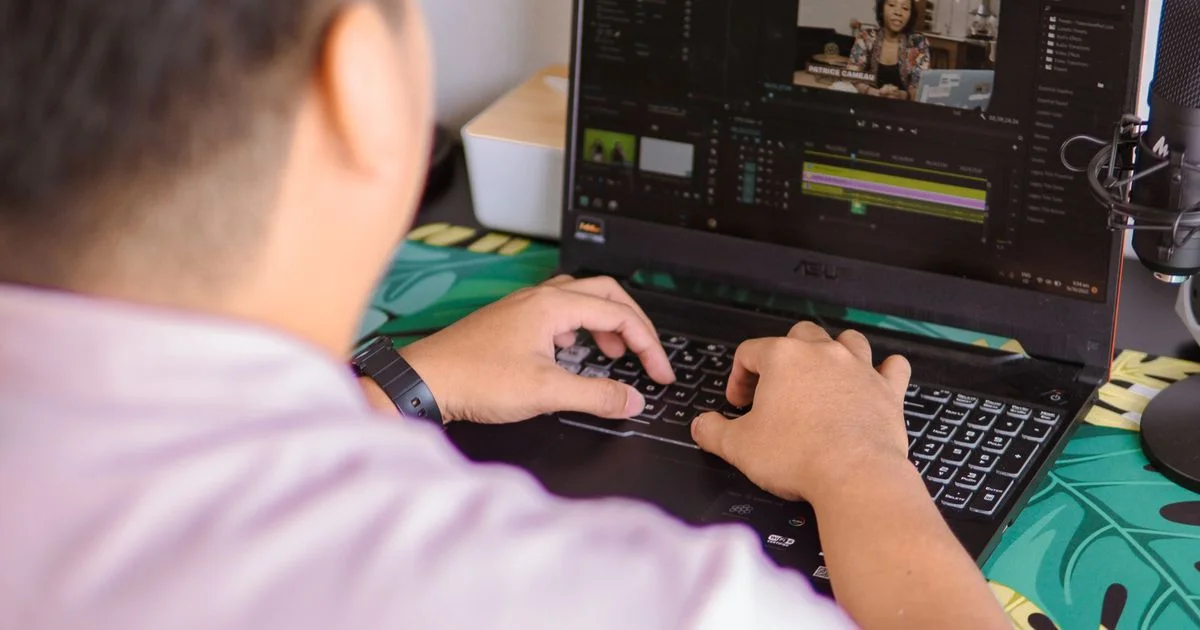
Free video editors have quietly gotten very good. Some of them are used on real film and television work. This free video editing software honest review is about which ones genuinely cost nothing, where the free tier stops, and which one suits the computer you already own.
Key Takeaways
- The major free editors do not put watermarks on your video. If a tool does, it is a trial, not a free editor.
- DaVinci Resolve is the most capable free option by a wide margin — and the most demanding on your hardware.
- Web and mobile editors like CapCut and Clipchamp cap free exports at 1080p and meter their AI features.
- Open-source editors (Shotcut, Kdenlive, OpenShot) have no caps at all, but ask more patience of you and of older machines.
- Pick for your machine and your output first. Feature lists matter far less than whether the timeline plays back smoothly.
Free Video Editing Software Honest Review: The Short Answer
The short answer: install DaVinci Resolve if your computer can handle it, use CapCut or Clipchamp if you are making short social clips, and pick Shotcut or Kdenlive if you want something light, open-source and unlimited. Almost nobody needs to pay for a video editor in 2026 unless they are billing clients.
The honest part of this free video editing software honest review is the caveat. “Free” splits into two very different models, and knowing which one you are using tells you where you will eventually hit a wall.
What “Free” Actually Costs You
There are three kinds of free video editor, and they fail in three different ways.
- Free tiers of commercial software. DaVinci Resolve is the standout. The free version is a real professional editor; the paid Studio upgrade adds AI-assisted tools like advanced masking and stronger noise reduction, plus collaboration features. The cost is hardware, not money.
- Freemium web and mobile apps. CapCut and Clipchamp fall here. They are free to use and export without a watermark, but the free tier caps export resolution at 1080p and limits how often you can run the AI features. The cost is a ceiling you will meet if your work grows.
- Open-source projects. Shotcut, Kdenlive and OpenShot are free in every sense — no accounts, no caps, no upsell. The cost is polish: rougher interfaces, fewer templates, and less hand-holding when something goes wrong.
One thing worth stating plainly, because it is the most common worry: none of the editors above stamp a watermark on your finished video. If an app you downloaded does, you have found a trial version of paid software rather than a free editor, and no amount of settings-hunting will remove it.
Easy Video Editor Comparison: Which One Fits Your Machine
The most useful easy video editor comparison is not about features. It is about whether the software will run well on the computer sitting in front of you, because a powerful editor that stutters is worse than a simple one that does not.
If you have a recent, well-specified computer
DaVinci Resolve is the obvious pick. It wants a modern multi-core processor, a dedicated graphics card with a decent amount of video memory, 16GB of system RAM and an SSD. Given that, the free version handles multi-camera edits, professional color grading and audio work that most people would expect to pay for. On a thin laptop with integrated graphics, it will frustrate you.
If you have an older or lower-powered laptop
Shotcut and Kdenlive are the sensible choices. Both are cross-platform and neither imposes limits. Kdenlive in particular supports proxy clips — it edits a lightweight stand-in copy of your footage and swaps the full-quality files back in at export, which is the single most effective trick for editing 4K on modest hardware. Shotcut does not generate proxies automatically, so very large files can still bog it down.
If you are mostly on a phone or in a browser
CapCut and Clipchamp are built for exactly this. Clipchamp runs in the browser and is well integrated for Windows users; CapCut runs on desktop, web and mobile and is the fastest route from raw clips to something formatted for social. Both are capped at 1080p output on the free plan.
If you are on a Mac and want something simple
iMovie is already installed, exports up to 4K on capable hardware and is genuinely pleasant for simple cuts. Its limits show up quickly: a very restricted timeline, no motion tracking and limited color control. It is a good first editor and a poor second one.

Best Video Software Ranked by What You Are Making
Ranking editors in the abstract is not useful. The best video software ranked for a YouTube documentary is not the best for a 20-second vertical clip. Match the tool to the output instead.
| Editor | Best for | Main trade-off |
|---|---|---|
| DaVinci Resolve | Long-form video, color grading, anything you want to look properly finished | Demanding hardware requirements and a real learning curve |
| CapCut | Short vertical social video, captions, quick turnarounds on a phone | 1080p export ceiling and metered AI features on the free plan |
| Clipchamp | Browser-based editing on Windows with no install | Also capped at 1080p free; fewer advanced tools than desktop editors |
| Shotcut | Straightforward cuts on modest hardware with no limits at all | Dated interface; large 4K files can stutter without proxies |
| Kdenlive | Longer projects on older machines, thanks to proxy editing | Less polished than commercial tools; occasional rough edges |
| OpenShot | Absolute beginners who want the simplest possible timeline | Limited effects and color tools; struggles with heavy 4K work |
| iMovie | Mac and iPhone users making simple, clean edits fast | Apple-only, with a heavily restricted timeline and few controls |
Video Editing Buying Guide: When Free Stops Being Enough
Most people never outgrow the free tier. A practical video editing buying guide starts by admitting that, then identifies the specific moments where paying actually buys you something.
Work through the decision in this order:
- Check your export needs first. If you only ever publish at 1080p, the caps on CapCut and Clipchamp are invisible to you and the question is settled.
- Check your hardware honestly. Try Resolve before you rule anything out, but if playback stutters on a short test project, believe it and move to a lighter editor.
- Count how often you hit a wall. One blocked feature a month is an annoyance. One a day is a reason to pay.
- Separate speed from capability. Paid tools often do the same job faster rather than doing jobs free tools cannot. If your time has a price, that is a legitimate reason to upgrade.
- Prefer one-time purchases to subscriptions where the choice exists — the paid tier of Resolve is bought once, while most web editors bill monthly forever.
- Learn one editor properly before switching. Most “this software is limited” frustration is unfamiliarity, and switching resets that progress.
The usual real reasons to pay are client work with deadlines, delivery above 1080p on a web-based editor, and heavy use of AI-assisted tools that free tiers meter.
Frequently Asked Questions
These are the questions that come up most when people move from a phone camera roll to an actual editing timeline.
Is DaVinci Resolve really free, or is it a trial?
It is genuinely free and not time-limited. The paid Studio version adds features such as advanced AI-based masking, stronger noise reduction and collaboration tools, but the free version is a complete editor and exports without a watermark.
Do free video editors put a watermark on my video?
The well-known ones do not. Watermarks are typically a sign that you have installed a trial of paid software, or that you have used a template or effect that is locked to a paid plan. Check what the app calls itself: “free trial” and “free plan” mean very different things.
Can I edit 4K video on a slow laptop?
Yes, with proxy editing. The editor creates smaller stand-in versions of your clips, you cut using those, and the original high-resolution files are used at export. Kdenlive and Resolve both support this. It is the difference between a slideshow and a usable timeline on older hardware.
Which free editor is easiest for a complete beginner?
CapCut on a phone, or iMovie if you are on a Mac. Both hide most of the complexity and get you to a finished clip quickly. OpenShot is the gentlest desktop option if you want a traditional timeline without a steep start.
The Bottom Line
There has never been a better time to edit video for nothing. Choose based on your hardware and your final output rather than the feature list, and expect to pay only when a specific limit starts costing you real time.


