

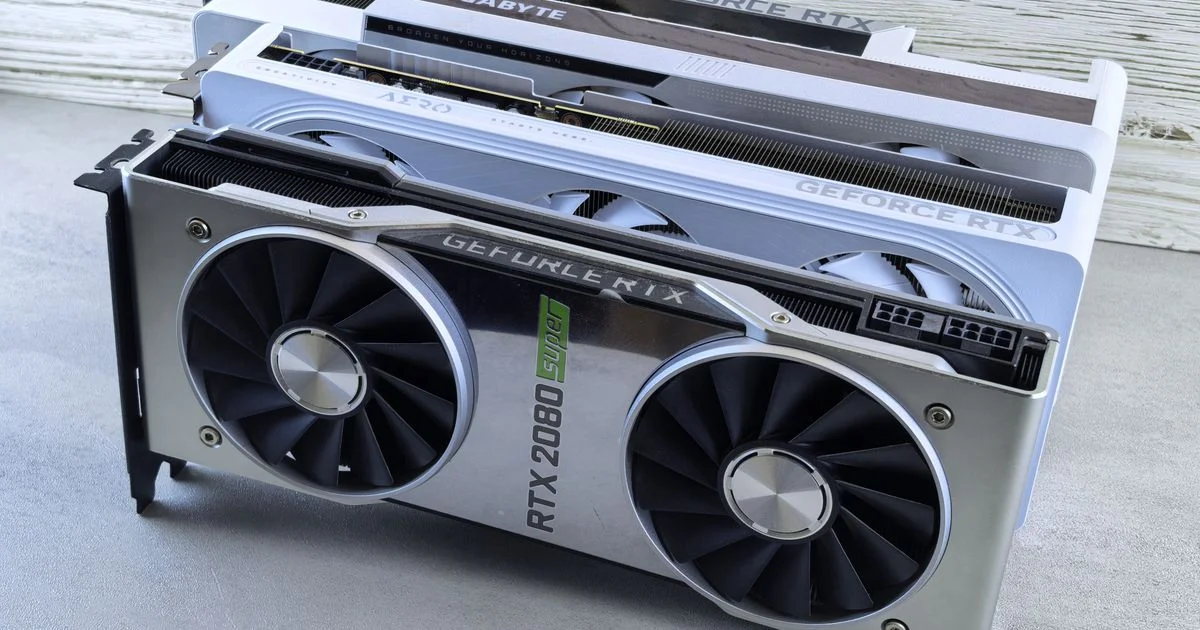
Graphics card listings are a wall of numbers, and most of them are chosen to impress rather than inform. The best budget graphics card for gaming PC builds is rarely the one with the biggest figure on the box — it is the one whose memory, bandwidth and power draw line up with the monitor you already own. This guide explains what each spec actually measures, and where the marketing quietly stops being useful.
Key Takeaways
- Memory capacity and memory bandwidth are two different specs. A card can have plenty of one and not enough of the other.
- Bus width is the spec manufacturers shrink first on cheap cards, because almost nobody checks it.
- Your monitor’s resolution and refresh rate set the target. Buying past it changes nothing you can see.
- Check the power connector and the physical length before you check the frame-rate charts.
- Upscaling has become part of the spec sheet, so “how fast is it” now depends on what the card is allowed to fake.
What the best budget graphics card for gaming PC builds actually needs
The short answer: enough video memory to hold the textures your games load, enough bandwidth to move that memory quickly, and a power draw your existing supply can handle. Everything else is refinement.
That is why two cards with the same headline memory figure can behave very differently. The best budget graphics card for gaming PC use is the one that balances those three things instead of maxing one and starving the others. A card with generous memory on a narrow bus is the classic budget compromise — it looks good in a spec table and runs into a wall the moment a game starts streaming textures quickly.
GPU buying guide 2026: the four specs that decide performance
A useful GPU buying guide is short, because only four numbers do real work. The rest are marketing garnish.
1. Video memory (VRAM)
VRAM is the staging area for textures, shadow maps and frame buffers. When a game needs more than the card has, it starts swapping data over the PCIe bus, and you feel that as stutter rather than as a lower average frame rate. That distinction matters: a card can post a respectable average and still feel bad to play.
Roughly, 8GB is the current entry point and is workable at 1080p with textures dialed back. 12GB is the comfortable middle for 1080p and 1440p. 16GB and up is where high-resolution texture packs and 4K stop being a problem. Capacity is a floor, not a speed rating — more memory does not make a slow card fast.
2. Memory bus width and bandwidth
Bus width is how many lanes the memory can use at once. Multiply it by memory speed and you get bandwidth, measured in gigabytes per second — the number that actually describes how fast data moves. Entry-level cards commonly use a 128-bit bus, mid-range parts step up to 192-bit, and high-end cards run 256-bit and wider.
Newer memory types and larger on-chip caches can partly compensate for a narrow bus, which is exactly why manufacturers feel comfortable narrowing it. “Partly” is doing real work in that sentence: cache helps most when a game reuses the same data, and helps least when it is streaming something new.
3. Compute cores and clock speed
Core counts only compare meaningfully within one generation from one manufacturer. A core in this year’s architecture is not the same unit of work as a core from three years ago, and an AMD core is not an NVIDIA core. Comparing raw core counts across brands is the single most common mistake in a spec-sheet argument.
4. Board power and connectors
Board power tells you what the card draws under load, which decides both your power supply headroom and how loud the cooler gets. It also tells you which cable you need. Cards at the bottom of the range may run entirely off the slot with no extra cable at all; step up and you need one or two PCIe power connectors from the supply.

Where the marketing number misleads
Three patterns show up again and again on affordable cards, and all three are legal, accurate and misleading at the same time.
Memory capacity used as a proxy for speed. A large memory figure printed on the box says nothing about bandwidth. It is the cheapest spec to increase and the easiest one to advertise.
Reduced PCIe lanes. Some budget parts connect to the motherboard using half the usual lanes. On a current motherboard the difference is small. On an older board running an earlier PCIe generation, halving the lanes halves the available bandwidth, and the card underperforms for reasons nothing on the box explains.
Frame rates that include upscaling and frame generation. A chart showing a huge number may be measuring the card rendering at a lower internal resolution and reconstructing the rest. That is a genuine feature and often worth using — but it is not the same measurement as native rendering, and comparisons only mean something when both sides use the same settings.
Budget graphics card comparison: what each tier gets you
Here is the honest version of a budget graphics card comparison, described by what each tier is built to do rather than by model name.
| Tier | Typical memory | Typical bus | Built for | Where it runs out |
|---|---|---|---|---|
| Entry / slot-powered | Smallest in the range | Narrow | Esports titles, older games, 1080p at moderate settings | Modern releases with high-resolution textures |
| Budget mainstream | Mid | Narrow to medium | 1080p at high settings, 60fps-plus in most current games | 1440p at high refresh, ray tracing |
| Upper budget | Comfortable | Medium | 1440p at high settings, 1080p at high refresh | 4K, heavy ray tracing |
| Lower mid-range | Generous | Medium to wide | 1440p with headroom, entry-level 4K | 4K at maximum settings |
Notice that the tiers are separated by what they can hold and how fast they can move it — not by how many cores they list.
GPU for gaming ranked by resolution, not by model name
The cleanest way to see a GPU for gaming ranked sensibly is to start from your monitor and work backwards. Do it in this order:
- Write down your monitor’s resolution and refresh rate. This is the actual target. A 1080p 60Hz panel cannot show you anything above 60 frames per second, no matter what the card produces.
- Decide whether you want maximum settings or maximum frames. Competitive players usually want frames; single-player players usually want settings. The two lead to different cards at the same budget.
- Set your memory floor from that answer. High textures at 1440p need more headroom than medium textures at 1080p.
- Check bandwidth, not just capacity. Between two cards with equal memory, the one with the wider bus or faster memory is the better buy.
- Confirm it physically fits and that your supply has the right cable. This is the step people skip, and it is the one that sends cards back.
What to check on the box or in the listing
Before you buy, find each of these. If a listing hides any of them, treat that as information too.
- Memory capacity and memory type — both, not just the capacity
- Memory bus width — usually printed as 128-bit, 192-bit or 256-bit
- PCIe generation and lane count — matters most if your motherboard is a few years old
- Board power and recommended power supply — and which connectors it needs
- Card length, height and slot thickness — measured against your case, not guessed
- Display outputs — the right ports and versions for your monitor’s resolution and refresh rate
Frequently Asked Questions
A few questions come up constantly whenever specs get compared, and most of them have shorter answers than the arguments suggest.
Is more VRAM always better?
No. Memory capacity sets a ceiling on what the card can hold, but it does not make the card faster. Between a card with lots of memory on a narrow bus and one with moderate memory on a wide bus, the second is usually the better gaming card at the same price.
Does a narrow memory bus really matter?
It matters when the card has to move a lot of new data quickly — open-world games streaming textures as you travel, or high-resolution texture packs. Larger caches soften the effect, and at 1080p the effect is smallest. At 1440p and above, bandwidth starts to show.
Can I compare AMD, NVIDIA and Intel cards by core count?
Not usefully. Each company counts cores differently and each architecture does different amounts of work per core. Compare cards by the resolution and settings they are built for, and by independent testing of games you actually play.
Do I need to worry about my power supply?
Check two things: total wattage headroom, and whether the supply has the specific PCIe connectors the card requires. Adapters exist but add a point of failure. If a card needs a cable your supply does not have, budget for the supply too.
The bottom line
Budget graphics cards are where manufacturers do their most creative spec-sheet work, so knowing which four numbers matter is worth more than any ranked list. Start from your monitor, insist on bandwidth alongside capacity, and confirm the card fits and can be powered before anything else.


1 Comment
Comments are closed.