

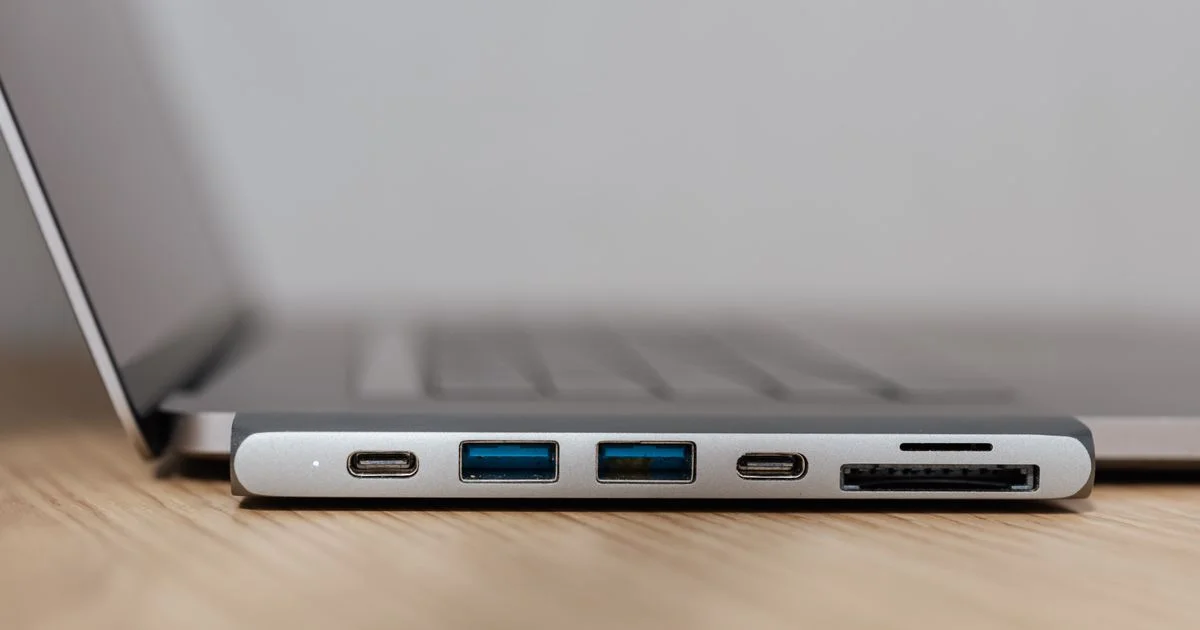
A MacBook is a superb machine with a short list of genuine frustrations: too few ports, no card slot on the thin models, and a chip that quietly decides how many monitors you are allowed. The best MacBook accessories and gadgets are the ones that fix those specific problems. Everything else is desk decoration, and there is a lot of desk decoration for sale.
Key Takeaways
- Buy for the limitation you actually hit. Most people need ports, not more gadgets.
- Your chip caps your monitors. Base M1 and M2 drive one external display; base M4 and M5 drive two.
- Base M3 also drives two, but only with the laptop lid closed, on macOS 14.6 or later.
- A USB-C cable is not automatically a Thunderbolt cable. Charging cables often carry no video at all.
- A powered dock and a bus-powered hub are different products, and mixing them up causes most “it stopped working” complaints.
The Best MacBook Accessories and Gadgets Start With Your Ports
The short answer: look at the left and right edges of your laptop, then buy to fill the gap. The best MacBook accessories and gadgets are chosen by subtraction — what does this machine not have that your daily work needs?
A MacBook Air gives you two Thunderbolt ports, MagSafe for charging and a headphone jack. That is it. No HDMI, no SD card slot, no USB-A. A MacBook Pro adds HDMI and an SDXC slot, which removes two of the three most common reasons to buy an adapter. If you own the Pro, you may need considerably less than the internet suggests.
MacBook Accessories 2026: The Hub Is the First Purchase
If you buy one thing, buy this. Most MacBook accessories 2026 shopping lists start with a hub for a good reason — it is the accessory that turns a two-port laptop into a usable desk machine. Choose it in this order:
- Count the ports you need, then add one. HDMI, USB-A, Ethernet and an SD slot cover most people. Buying a fourteen-port dock for two devices is money spent on ports you will never touch.
- Check for power passthrough. A hub that occupies a Thunderbolt port and cannot pass charging back through it has cost you a port rather than gained you one.
- Decide bus-powered or powered. Bus-powered hubs draw from the laptop and are fine for a keyboard, mouse and a drive. Anything with a spinning hard drive or several devices wants its own power supply.
- Check the display spec, not the port. An HDMI port on a cheap hub may be capped at a lower refresh rate than your monitor supports, which is how people end up with a 60Hz monitor running at 30Hz.
External Displays: What Your Chip Will Actually Drive
This is where the most expensive mistakes happen, because the limit lives in the processor rather than in your cable. Apple silicon has changed its rules over generations, and buying a second monitor for a machine that cannot drive one is a genuinely common error.
- Base M1 and M2: one external display, up to 6K at 60Hz.
- Base M3: two external displays, but only with the lid closed, and only on macOS 14.6 or later.
- Base M4 and M5: two external displays with the lid open, up to 6K at 60Hz.
- Pro and Max chips: more displays again — check your specific model before planning a wall of monitors.
If your chip will not natively drive the number of screens you want, a DisplayLink adapter is the workaround. It pushes video over USB using software rather than the chip’s display engine. It works, it adds a small amount of overhead, and it requires a driver — a reasonable trade if the alternative is a new laptop.

MacBook Gadgets Review: What Earns Desk Space
An honest MacBook gadgets review has to separate the things that solve a problem from the things that photograph well. These consistently earn their place:
- An external SSD. Apple’s internal storage is expensive to upgrade at purchase, and a fast external drive is the cheapest fix for a full disk.
- A proper Thunderbolt cable. Unlabeled cables in a drawer are the single biggest cause of mysterious speed and display problems.
- An SD card reader — but only if you shoot photos and own an Air. Pro owners already have the slot.
- A second charger for the bag, so the desk one never moves.
- A stand or riser if you work at the laptop for hours, because the screen and keyboard being fixed together is the machine’s one ergonomic flaw.
What tends not to earn its place: RGB-lit anything, cooling pads for a fanless Air, screen protectors on a laptop, and the sprawling accessory kits sold as bundles where the useful item is one of nine.
Apple Gadget Accessories Comparison: First-Party or Third-Party?
An apple gadget accessories comparison usually comes down to how much certainty you are buying. Both routes are legitimate — they suit different purchases.
| Accessory type | Where first-party wins | Where third-party wins |
|---|---|---|
| Chargers and cables | Guaranteed wattage and safety, no guesswork on standards | Compact GaN chargers, more ports, longer cables — stick to reputable brands |
| Hubs and docks | Not really a category Apple competes in | The whole market — choose on port mix and power delivery |
| Displays | Seamless scaling and color handling out of the box | Far more choice of size and refresh rate for the money |
| Keyboards and mice | Full gesture support and tight macOS integration | Mechanical feel, ergonomic shapes, multi-device switching |
Frequently Asked Questions
A few questions come up again and again once people start buying for a MacBook, and most of them trace back to cables or to the chip rather than to the accessory itself.
Why does my monitor not work through my new hub?
Usually one of three things: the cable is a charge-only USB-C cable with no video lanes, the hub’s HDMI port is limited to a lower refresh rate, or your chip has already reached its display limit. Test the monitor plugged straight into the laptop first — that isolates the problem in about a minute.
Do I need Thunderbolt, or is USB-C enough?
They share a connector but not a capability. For a keyboard, mouse or basic hub, USB-C is fine. For fast external drives, high-resolution displays or daisy-chaining, you want Thunderbolt on the cable, the accessory and the port.
Is a cooling pad worth it for a MacBook?
For a fanless MacBook Air, not really — it throttles by design and a pad underneath changes little. For a heavily loaded Pro, better airflow around the machine helps more than a fan pointed at the base.
Will a third-party charger damage my MacBook?
A reputable USB-C Power Delivery charger from a known brand is fine and negotiates safely with the laptop. The risk sits with unbranded chargers that claim high wattage without meeting the standard. Buy from brands with a reputation to protect.
The Bottom Line
Start by naming the limitation you hit most often — ports, storage, screen space or posture — and buy the one item that removes it. Check your chip’s display ceiling before ordering a second monitor, and treat cables as real components rather than free extras in a drawer.


