

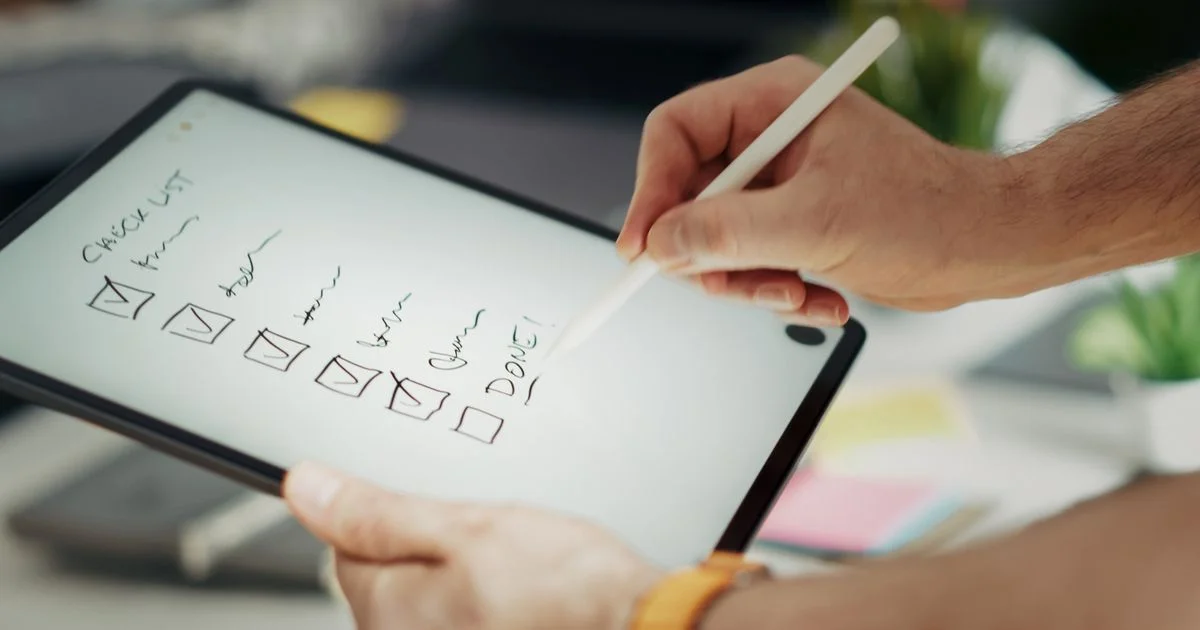
Most people have downloaded three task apps and are still writing things on their hand. The apps are rarely the problem. The best to do list app for productivity is simply the one you open without thinking, and that is a much lower bar than the feature lists suggest — which is good news, because it means the cheapest option often wins.
Key Takeaways
- Capture speed beats every other feature. If adding a task takes more than five seconds, you will stop doing it.
- Free tiers are enough for most individuals. Paid plans mostly buy reminders, collaboration and history.
- A to-do list and a project tool are different things. Using one for the other is why people give up.
- Pick an app that lives on every device you own, or it becomes a device you have to remember to check.
- Switching apps feels productive and rarely is. Give one a full month before you judge it.
What Makes the Best To Do List App for Productivity?
The short answer: fast capture, a view that shows only today, and reminders you trust. Everything past that is preference.
Task apps fail in a predictable way. You set them up on a Sunday, fill them with a beautiful structure of projects and tags, and by Wednesday you are back to sticky notes. That happens because the app made adding a task feel like paperwork. The best to do list app for productivity gets a thought out of your head in a couple of taps, from a widget, a keyboard shortcut or a voice command, and sorts it out later.
The second thing that separates the good from the abandoned is what you see when you open it. An app that greets you with 140 outstanding tasks trains you to close it. One that shows six things due today keeps you honest.
Free Todo App Comparison 2026: What You Actually Give Up
Any honest free todo app comparison 2026 has to start with a caveat: free tiers change often, and what is included this quarter may sit behind a subscription next year. So compare categories of limits rather than exact numbers.
The limits that usually separate free from paid:
- Reminders. Several popular apps put time-based notifications on the paid tier. This is the single most common upgrade trigger.
- Number of projects or lists. Generous for personal use, restrictive if you organize by client or by area of life.
- Collaborators. Sharing a grocery list is usually free. Assigning work to five people is not.
- Attachments and history. File uploads and completed-task archives are common paid extras.
- Calendar sync. Two-way sync with Google or Outlook Calendar is frequently a premium feature.
For one person tracking their own life, the free tier of a mainstream app is genuinely enough. Paying makes sense when a missed reminder costs you real money, or when someone else depends on the list.
| App type | Best for | Trade-off |
|---|---|---|
| Built-in (Apple Reminders, Google Tasks) | Free, already installed, voice capture | Thin features, tied to one ecosystem |
| Dedicated task apps (Todoist, TickTick) | Fast capture, works on every platform | Best reminders and views often paid |
| One-time-purchase apps (Things) | No subscription, polished design | Apple-only, upfront cost per device |
| Note-and-database tools (Notion, Obsidian) | Flexible, combines notes with tasks | Slow to add tasks, easy to over-build |
| Team platforms (Asana, Trello, ClickUp) | Shared work with deadlines and owners | Overkill and noisy for personal lists |
Task Management App Review: When a List Is Not Enough
A useful task management app review makes one distinction most listicles blur. A to-do list holds things one person will do. A task management tool holds work several people share, with owners, stages and dependencies. They look similar and behave nothing alike.

You have outgrown a simple list when tasks routinely wait on someone else, when you need to see the status of work you are not doing yourself, or when the same list is being read by three people who all edit it. Until then, a board with columns adds ceremony without adding output.
The reverse mistake is just as common: running your personal errands inside a team platform. Grocery items in a sprint board is how people learn to dread opening the app.
Best Productivity App Ranked: Rank It Against Your Own Habits
Lists of the best productivity app ranked by some reviewer are ranking against that reviewer’s workflow. Yours is different, so run your own short test instead. Three questions settle it faster than any roundup.
First, how do you capture tasks — typed at a desk, dictated in the car, or forwarded from email? Pick the app that is strongest at your dominant method. Second, do you plan by day or by project? Some apps default to a calendar-like today view, others to nested projects, and fighting that default is exhausting. Third, which devices must it be on? An app that is beautiful on iPhone and mediocre in a browser is the wrong choice if you work on a PC all day.
Features That Actually Change Behavior
Most feature lists are noise. A handful genuinely change whether you finish things.
Natural language input
Typing “call the dentist Tuesday 3pm” and having the app parse the date is the difference between capturing a task and skipping it. This one feature does more for adoption than any other.
A real today view
Not a filter you build yourself — a default screen that shows what is due now and hides the rest. If you have to configure it, you eventually will not.
Recurring tasks that behave sensibly
Check how the app handles a repeating task you complete late. Some reschedule from the due date, some from the completion date. Getting this wrong turns a weekly chore into a permanent guilt trip.
How to Switch Apps Without Losing Everything
If you do decide to move, do it deliberately. App-hopping is the most seductive form of procrastination there is.
- Export your current data first, even if you never open the file. Most apps offer CSV or JSON.
- Do not import everything. Carry over only tasks with a real deadline — the rest were never going to happen.
- Set up exactly three projects to begin with. You can add more once you know how you actually use it.
- Install it on every device the same day, and put it on your phone’s home screen.
- Turn on one reminder style and stick with it for a week. Notifications you ignore are worse than none.
- Run it for a full month before deciding. The first week of any app feels great and tells you nothing.
Frequently Asked Questions
The same few questions come up whenever someone tries to get organized, and most have shorter answers than people expect.
Is a paid to-do app worth it?
Worth it if reminders or calendar sync sit behind the paywall and you rely on them. If you mostly review your list manually each morning, a free tier will serve you fine.
Should I use my calendar instead of a task app?
Use both. Calendars are for things that happen at a fixed time; task lists are for things that need doing at some point. Forcing errands into calendar slots tends to create a wall of overdue events.
How many tasks should be on my list for one day?
Three to five meaningful ones, plus small errands. Longer daily lists are really weekly lists in disguise, and they reliably end the day looking like failure.
What about apps that use AI to plan my day?
They can be useful for slotting tasks into free calendar time. Treat the schedule as a suggestion — the app knows your calendar, not your energy or your priorities.
The Bottom Line
Pick the app with the fastest capture on the device you actually carry, start with a free tier, and give it a month before judging. The organizing system matters far less than the habit of putting things into it.


2 Comments
Comments are closed.